Aptora brings thousands of new jobs a day from job boards and company career pages across Germany, Austria and Switzerland into one place, freelance projects and permanent positions alike.
Search the jobs on the website, in the app or over MCP from your AI assistant. Your CV becomes an Aptora profile that you can share by link.
Aptora compares job requirements with your skills and rates the overlap.
Teams can publish vacancies, find matching profiles and manage applications.
About Aptora
Who is Aptora for?
Aptora is built mainly for freelancers, and also for anyone looking for a permanent position or working in a consulting team. Companies can find people whose skills match their jobs and projects.
Freelancers, the self-employed and professionalsFind new projects and jobs from job boards and career pages in one place every day and see which requirements match your skills. Keep your CV up to date and share a link instead of sending another CV copy for every enquiry.
Consultancies and project teamsWhether you have ten people or a hundred, you can manage your team's CVs and skills in one place. See who can do what and compare people's experience with a project's requirements.
Companies hiring peoplePublish vacancies and search for relevant profiles. The comparison shows which requirements are met and which skills are missing. You can also use Aptora from your AI assistant through MCP.
About Aptora
Which countries can I find jobs in on Aptora?
Our job listings currently cover Germany, Austria and Switzerland (the DACH region).
You can search for jobs in these countries even if you live elsewhere. Check each listing for its location, remote working and language requirements.
About Aptora
Which languages does Aptora support?
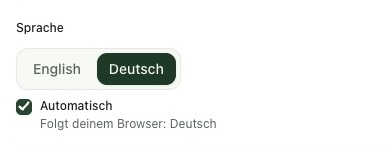
Aptora supports German and English. Choose the interface language under Settings → Personal details → Language.
With “Automatic”, Aptora follows your browser language.
Jobs from several boardsAptora collects vacancies from different job boards so you can search them in one place.
Automatic skills comparisonAptora detects skills in job advertisements and your CV. The comparison also includes skills you have entered yourself. A rating shows how closely your skills match the requirements, including which requirements you meet and which you do not.
MCP integration for AI assistantsUse Aptora from an AI chat to search for jobs, edit your CV and draft vacancies. You decide which functions the assistant can access.
No placement commissionAptora does not take a share of your salary or contract. You pay for the plan you choose.
Profiles & CVs
What does my CV contain?
Your Aptora profile is your editable online CV (resume). It holds your work experience, projects, education and capabilities, plus contact details, a short summary and optional sections such as languages, interests or references.
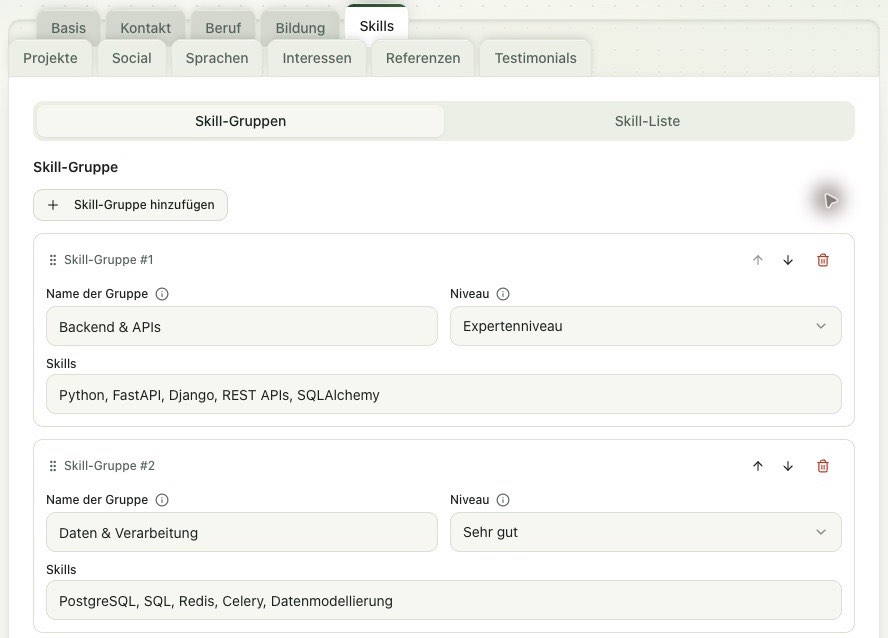
You edit the content in separate sections. You can organise skills into groups and specify your level. Aptora uses these details to create your CV in a design of your choice.
For technical users: The Aptora CV schema documents profile fields, their data types, required values and allowed options. It also includes a complete sample profile in JSON format.
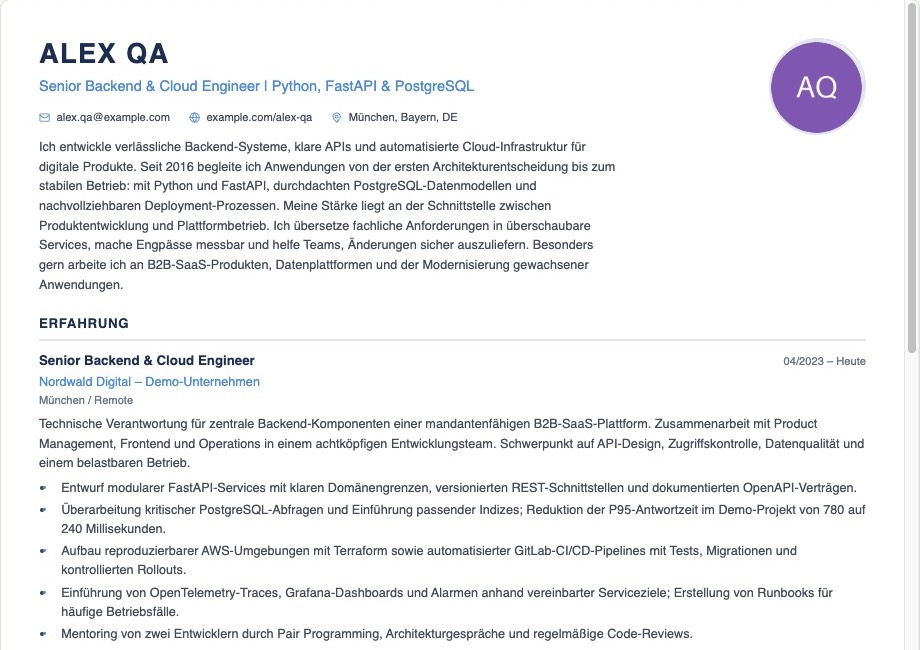
Here is Alex QA's sample CV, shown in the preview and in the skills editor.
EnlargeDemo profile: the preview shows how your details appear in the CV.
EnlargeManage skills, groups and proficiency levels in the editor.
You decide separately for each profile: just you, your team, signed-in Aptora users or anyone with the link. Your name and contact details are hidden from people outside your workspace by default — even on a public profile.
What visibility levels are available?
Each higher level expands the audience. The setting for hiding personal details separately controls which personal information viewers can see.
DraftOnly you can see the CV. It does not appear in talent search and cannot be accessed through a sharing link.
Shared with teamMembers of the workspace can see the CV. This level is available in organisations, but not in your personal workspace.
Findable on AptoraCompanies can find the profile in talent search. Anyone opening its link must be signed in to Aptora.
PublicAnyone with the link can open the CV without signing in. It is also discoverable on Aptora.
Where can I see the current level and change it?
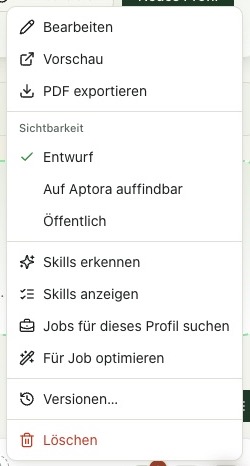
An icon next to the profile name in the overview indicates its visibility. A padlock means Draft. Open the actions menu to see the full name of the active level, marked with a tick.
Choose the level under “Visibility”. “Public” makes the profile accessible without signing in. Your choice is saved immediately.
You can change the level again in the same menu, for example back to “Draft”.
EnlargeThe tick marks the active level. These three options are available in your personal workspace.
How is my profile shown to other people?
Your CV appears in your chosen design, with your employment history, skills and other details. By default, your name, email address, phone number, street address, postcode and personal links are obscured for external viewers. City, region and country remain visible.
This applies to “Findable on Aptora” and “Public”. You and members of your workspace see the complete details. Your own preview therefore does not show which details external visitors can see.
Hidden contact details do not make the whole CV anonymous: employers, projects or free-text entries may reveal who you are. Check your text too if you do not want to be identified.
EnlargeWhile this switch is on, personal details remain hidden from external viewers.
I want to show my name but not my email address
Turning off hiding reveals the personal details you have entered together. There is no separate switch just for your name. First remove any details from the CV that you do not want to share.
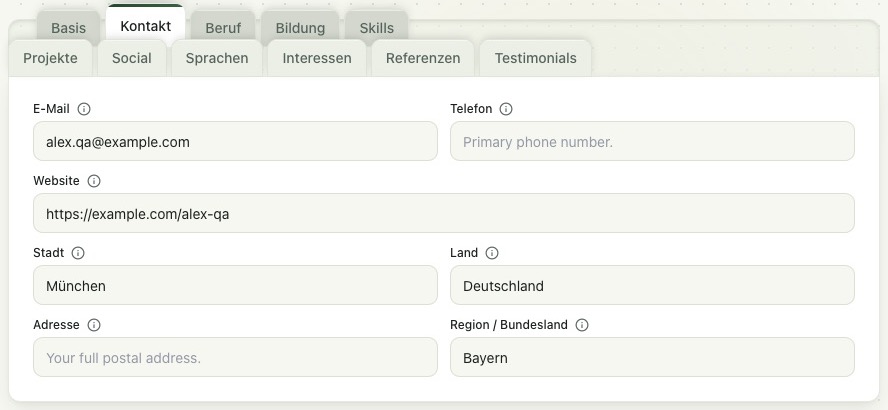
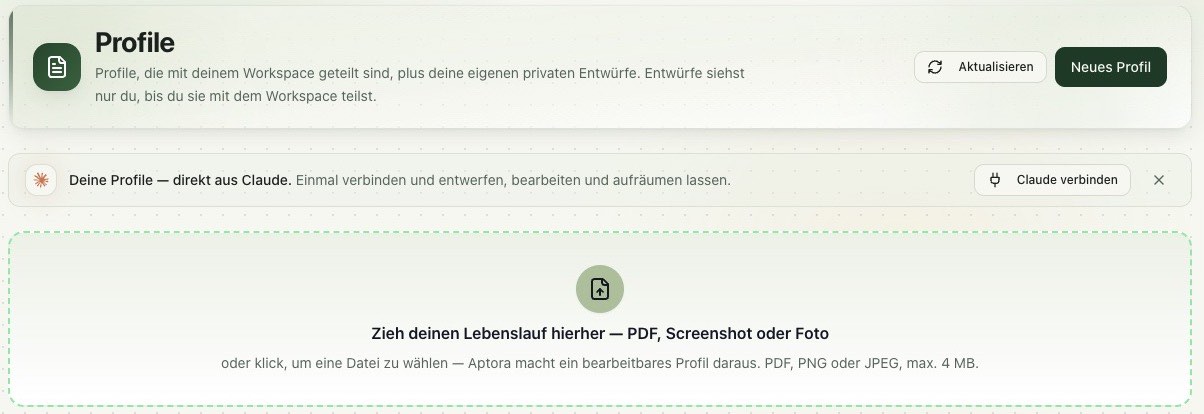
Open your profiles, choose “Edit” for the profile, then select the “Contact” tab.
Clear “Email” and “Phone” if you do not want those details to be visible. Check your address, website, social links and free-text entries as needed.
Click “Save profile”. Repeat this for every affected profile before turning off hiding.
EnlargeDetails left here may become visible when you turn hiding off. The phone field in this example is already empty.
How do I show my full profile with my name?
This setting applies to that profile and to copies you create from it. The visibility level stays the same: a draft remains private, “Findable on Aptora” remains limited to signed-in users, and “Public” is accessible without signing in.
You can turn hiding back on at any time under “Sharing & visibility” on your profile. This does not retrieve copies that other people have already saved or downloaded.
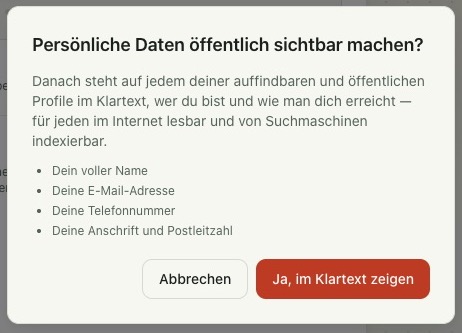
Read the notice and confirm with “Yes, show them in the clear”. The change is saved only after you confirm.
EnlargeThis confirmation appears before details are revealed. Access still depends on each profile’s visibility level.
What about profiles in a team?
For profiles created directly in an organisation, personal details remain hidden outside the team. You cannot turn this off there. A personal profile you share with a team instead follows your personal hiding preference.
To check a public profile, open its sharing link in a browser window where you are not signed in to Aptora. You will see the version a visitor without an account receives.
Open your profiles, set the profile to “Findable on Aptora” or “Public” and share its link. Choose “Public” for a link that works without signing in.
Your name and contact details are hidden from external viewers by default. “Who can see my CV?” explains how to control access and the display of personal details.
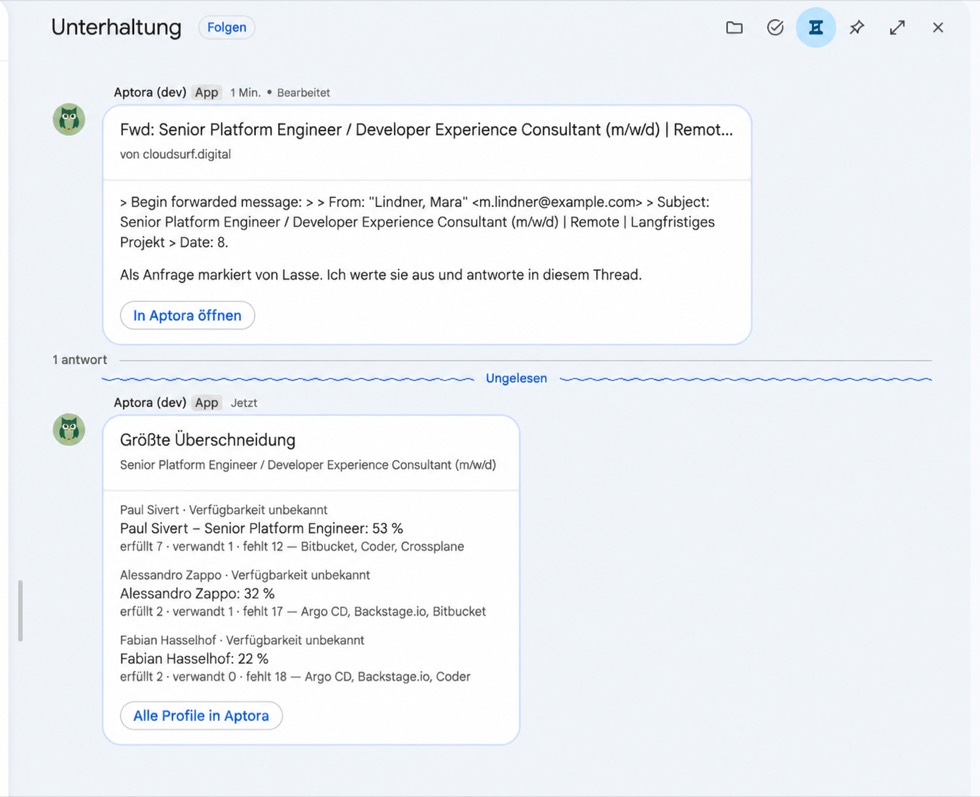
Yes. You can connect a Google Chat™ space to your organisation. Aptora can post updates about new profiles, vacancies and incoming recruiter emails.
The example shows an email sent to the team inbox. It appears in Google Chat™ and is marked as an enquiry. Aptora analyses its requirements and replies in the same thread with relevant CVs and their skills overlap.
The reply also shows which requirements are met, covered by related skills or missing. The links open the enquiry and profiles in Aptora.
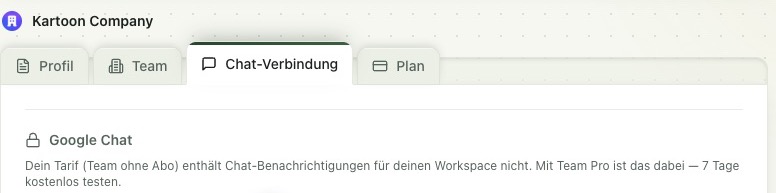
Manage the connection and the updates you want under Settings → Chat connection. Select your organisation first. This requires Team Pro or Enterprise.
EnlargeExample team-inbox enquiry with automatic analysis. The sender’s name and email address have been replaced with fictional details.Add Aptora to Google Chat™
An admin of your Aptora workspace can connect a space to the workspace.
Installing the Chat app from Google Workspace Marketplace is free. Your workspace needs Team Pro or Enterprise to use the integration.
Click “Add Aptora to Google Chat™” below and choose “Add to space” in Marketplace. Then write “@Aptora Hello” in the space and open “Configure”. Sign in to Aptora with your Google Chat™ email address and confirm your workspace.
Manage the connection under Settings → Chat connection. Other members can link their Aptora account in the connected space.
Use “View plans” to compare the available options. “Manage payments & invoices” takes you to billing management. The terms that apply to your change are shown there.
By the overlap between a vacancy's requirements and your skills.
Aptora automatically detects skills in job advertisements and your CV. Skills you enter yourself are included in the comparison too. You get a rating and can see which requirements you meet and which you do not.
A paid plan or good reviews do not improve your position in the results.
The ranking page explains the criteria and their weighting.
We use strictly necessary cookies so that Aptora works at all. Anything beyond that we only use once you allow it. You can change or withdraw your choice at any time via "Cookie settings" in the footer. Privacy policy